How to Create a VAT Compliant Tax Invoice in Tally Prime for UAE Businesses
Many guides explain VAT invoices in Tally Prime, but most are written for India. This guide shows the correct UAE VAT compliant way, based on real FTA rules and Tally Prime setup.
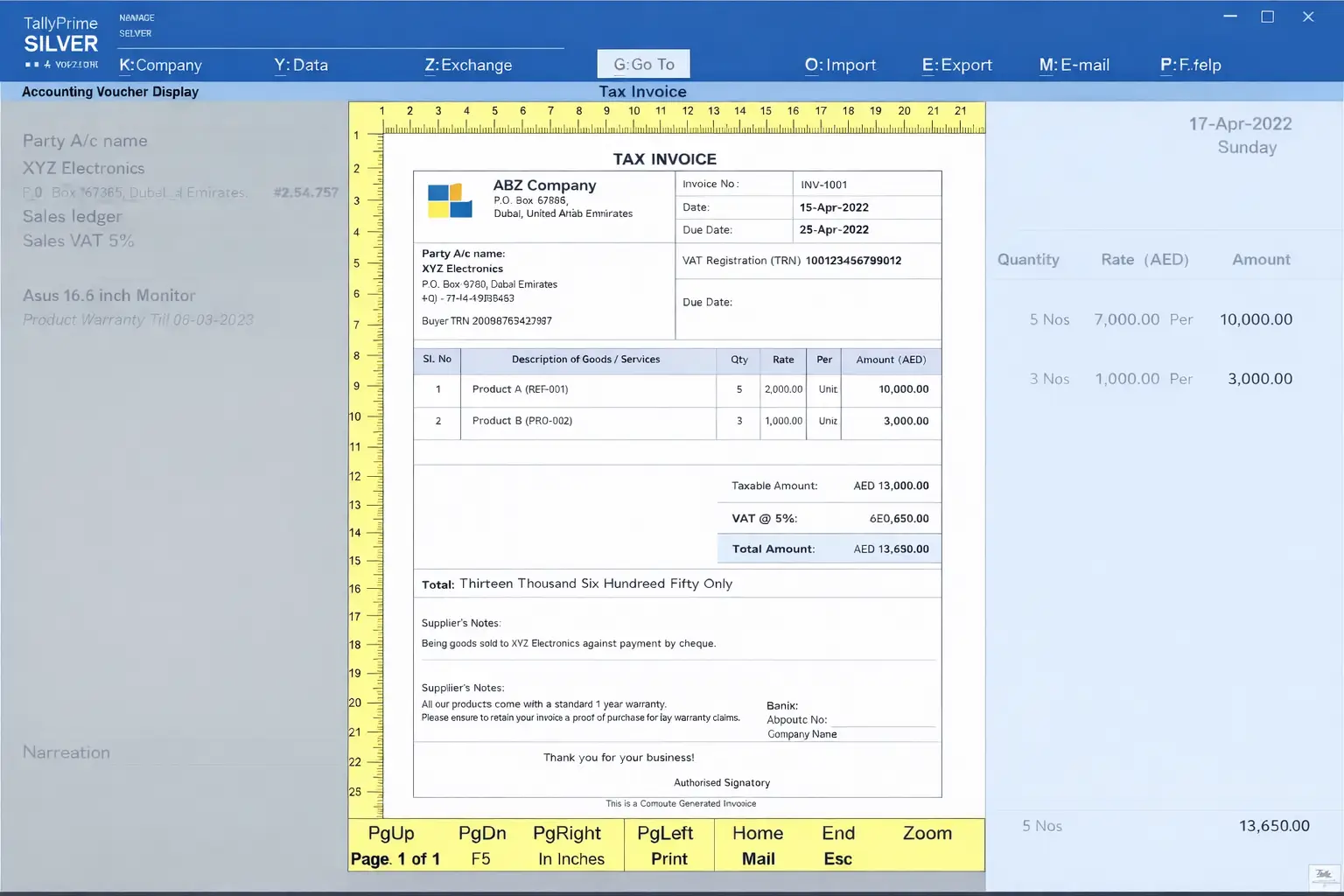
Many users search for this, but get the wrong answers
Many UAE business owners and accounts assistants search online for how to create a VAT invoice in Tally Prime.
Most results look confident, step based, and detailed.
The problem is simple.
Almost all of them are written for India, not for the UAE.
They talk about GST, CGST, SGST, invoice series rules, and tax breakup formats that do not apply in the UAE.
If you follow those guides, your invoice may look fine on screen, but it will not be VAT compliant under FTA rules.
This article explains the correct UAE way, clearly and practically.
Why generic TallyHelp guides fail for UAE businesses
Generic TallyHelp style content usually fails because:
- It assumes Indian GST is enabled
- It uses GST tax ledgers and GST rates
- It ignores TRN display requirements
- It does not follow UAE tax invoice rules
- It uses outdated workflows or screenshots
In the UAE, VAT is simpler than GST, but the compliance rules are strict.
FTA does not care how clean your invoice looks.
They care whether mandatory details are present and VAT is calculated correctly.
How VAT tax invoices work in the UAE, explained simply
In the UAE, a tax invoice is required when:
- You are VAT registered
- You charge 5 percent VAT
- The supply is standard rated
- It does not follow UAE tax invoice rules
A valid UAE VAT tax invoice must include:
- Supplier legal name
- Supplier TRN
- Invoice number and date
- Customer name
- Description of goods or services
- Taxable amount in AED
- VAT amount at 5 percent
- Total amount including VAT
Tally Prime already supports all of this.
The issue is incorrect configuration, not missing features.
Step 1: Confirm UAE VAT is enabled in Tally Prime
Before creating invoices, ensure VAT is enabled correctly.
Go to:
Gateway of Tally → F11 Features → Statutory and Taxation
Set:
• Enable Goods and Services Tax (GST): No
• Enable Value Added Tax (VAT): Yes
• VAT Registration Type: Regular
• VAT Applicable From: As per your FTA registration date
This step is critical.
If GST is enabled, stop and disable it.
Step 2: Enter correct VAT and TRN details for your business
Go to:
Gateway of Tally → Alter → Company Details
Check and update:
• Country: United Arab Emirates
• Currency: AED
• VAT Registration Number (TRN): Your 15 digit TRN
• Address: As per trade license
Your TRN must appear on every tax invoice.
Missing TRN is a common FTA non compliance issue.
Step 3: Create sales ledger correctly for UAE VAT
Many users reuse old Indian ledgers.
This causes wrong VAT reporting.
Create a new ledger:
Gateway of Tally → Create → Ledger
Set:
• Ledger Name: Sales VAT 5%
• Under: Sales Accounts
• VAT Applicable: Yes
• VAT Classification: Standard Rated Sales
• VAT Rate: 5%
Do not create GST ledgers.
Do not use output CGST or SGST.
Step 4: Configure stock items or service ledgers properly
For trading businesses:
Each stock item must have correct VAT classification.
Open a stock item and check:
• VAT Applicable: Yes
• VAT Rate: 5%
• VAT Classification: Taxable
For service companies:
Use service ledgers with VAT enabled.
Do not skip this step.
Wrong stock setup leads to wrong VAT return values, even if invoice looks correct.
Step 5: Create a VAT compliant tax invoice in Tally Prime
Now the actual invoice creation.
Go to:
Gateway of Tally → Vouchers → F8 Sales
Enter details:
• Party ledger with customer name
• Sales ledger with VAT 5%
• Stock items or service value
• Invoice date
• Invoice number
Tally will automatically calculate VAT if setup is correct.
Do not manually add VAT values.
Real AED invoice example for UAE business
Example:
A Dubai based trading company sells goods worth AED 10,000.
Invoice details:
• Taxable value: AED 10,000
• VAT at 5 percent: AED 500
• Total invoice value: AED 10,500
On the invoice you should see:
• TRN clearly displayed
• VAT amount shown separately
• Total including VAT
If VAT is included inside the price without breakup, your setup is wrong.
Common mistakes UAE users make by following Indian guides
These are mistakes I see daily in real UAE support cases.
• GST enabled instead of VAT
• Using CGST or SGST ledgers
• Missing TRN on invoice
• Wrong VAT classification in stock items
• Manually adding VAT as expense
• Using inclusive pricing without clarity
All of these cause FTA VAT return mismatches.
When a tax invoice is required and when it is not
You must issue a tax invoice if:
• You are VAT registered
• You charge 5 percent VAT
You do not issue tax invoice if:
• You are not VAT registered
• You supply exempt goods or services
• You are below VAT threshold
In such cases, use simple sales invoice, not tax invoice.
Why this setup matters beyond invoices
Correct tax invoice setup affects:
• VAT return accuracy
• FTA audit readiness
• Credit note handling
• Input VAT claims
• Year end reconciliation
An invoice is not just a printout.
It feeds all VAT reports in Tally Prime.
Helpful closing from real UAE support experience
If your VAT invoice looks fine but VAT return numbers are wrong,
the problem is almost always ledger or stock VAT classification.
Do not try to fix VAT issues at return time.
Fix them at invoice level.
If you are migrating from Indian Tally data, review every ledger before using it in UAE.
Correct setup once saves months of correction later.
If you need clarity, review your setup calmly, step by step, using UAE rules only.
Reference sources used for this article
The following official sources were used only for feature reference and compliance understanding, not copied content:
This guidance is based on real UAE Tally Prime support cases and current FTA VAT rules.