

A Tally Prime installation error in a UAE office is almost never a faulty download. It is usually Windows permissions, security software, or licence activation blocking the setup, and the installer finishes while the software still does not work. This guide walks through each Tally Prime installation error, what causes it, and how to fix it in order.
What this guide covers
What happens during a Tally Prime installation
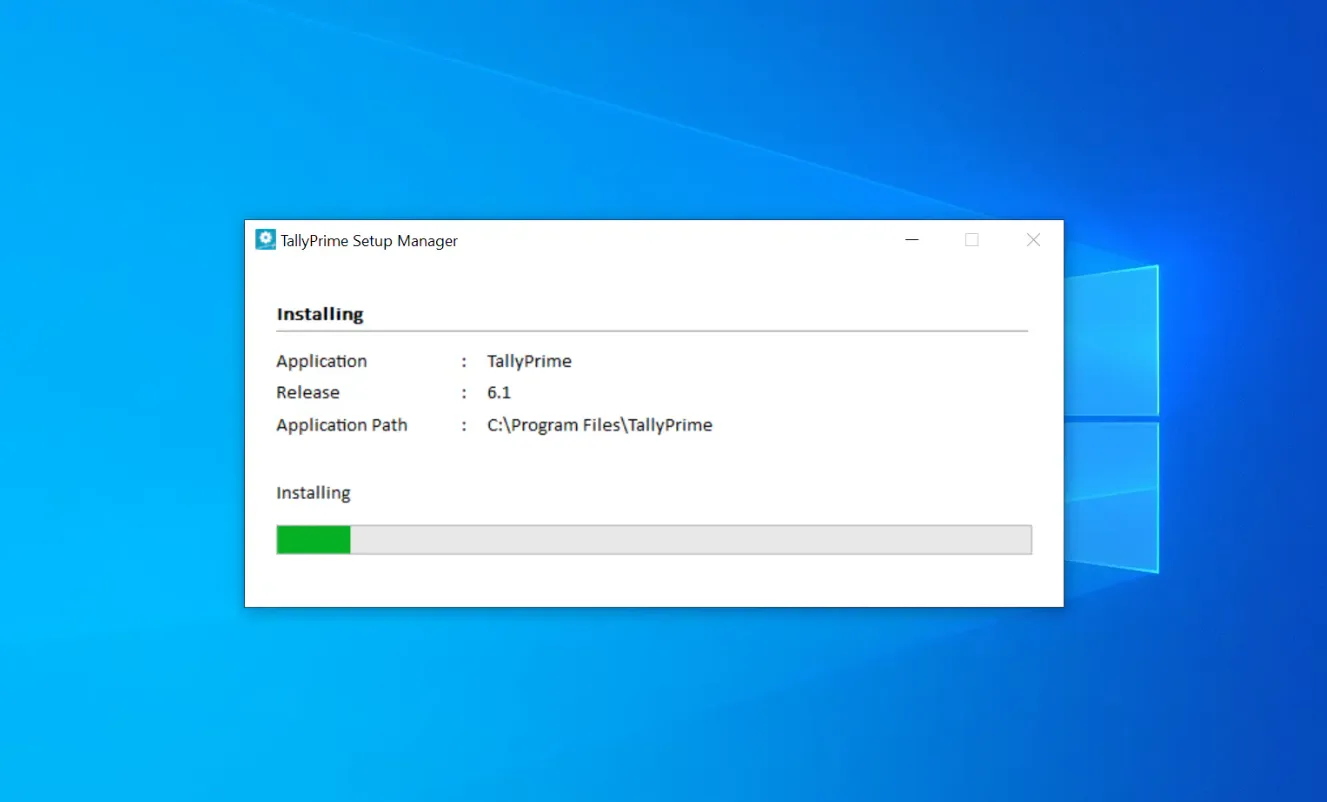
During installation, TallyPrime copies program files to the system, checks Windows permissions, and prepares the environment for licence activation and data access. If security software or user restrictions interrupt any of those steps, the installation can look complete while the software does not function correctly.
That mismatch is why troubleshooting a Tally Prime installation error starts with the environment, not with reinstalling. Reinstalling over a blocked permission simply reproduces the same result.
Work in order. Fix permissions and security software before you touch activation. Most reported Tally Prime installation errors are environmental, and the licence steps only succeed once the environment allows them.
Before the installer runs
Check administrator permissions first
Limited user permissions are the most common cause in UAE offices, where IT policies restrict who can install software. Always run the installer with administrator rights, and confirm the account itself has permission to install applications. Sudden installer closure usually indicates a permission related block rather than a corrupted file.
Review antivirus and Windows security settings
Antivirus tools and Windows Defender may block executable files during installation, which causes the installer to freeze or fail silently. Pause real time scanning for the duration of the setup, then add the Tally Prime folder to exclusions afterwards so normal operation is not interrupted.
Installer does not open or closes immediately
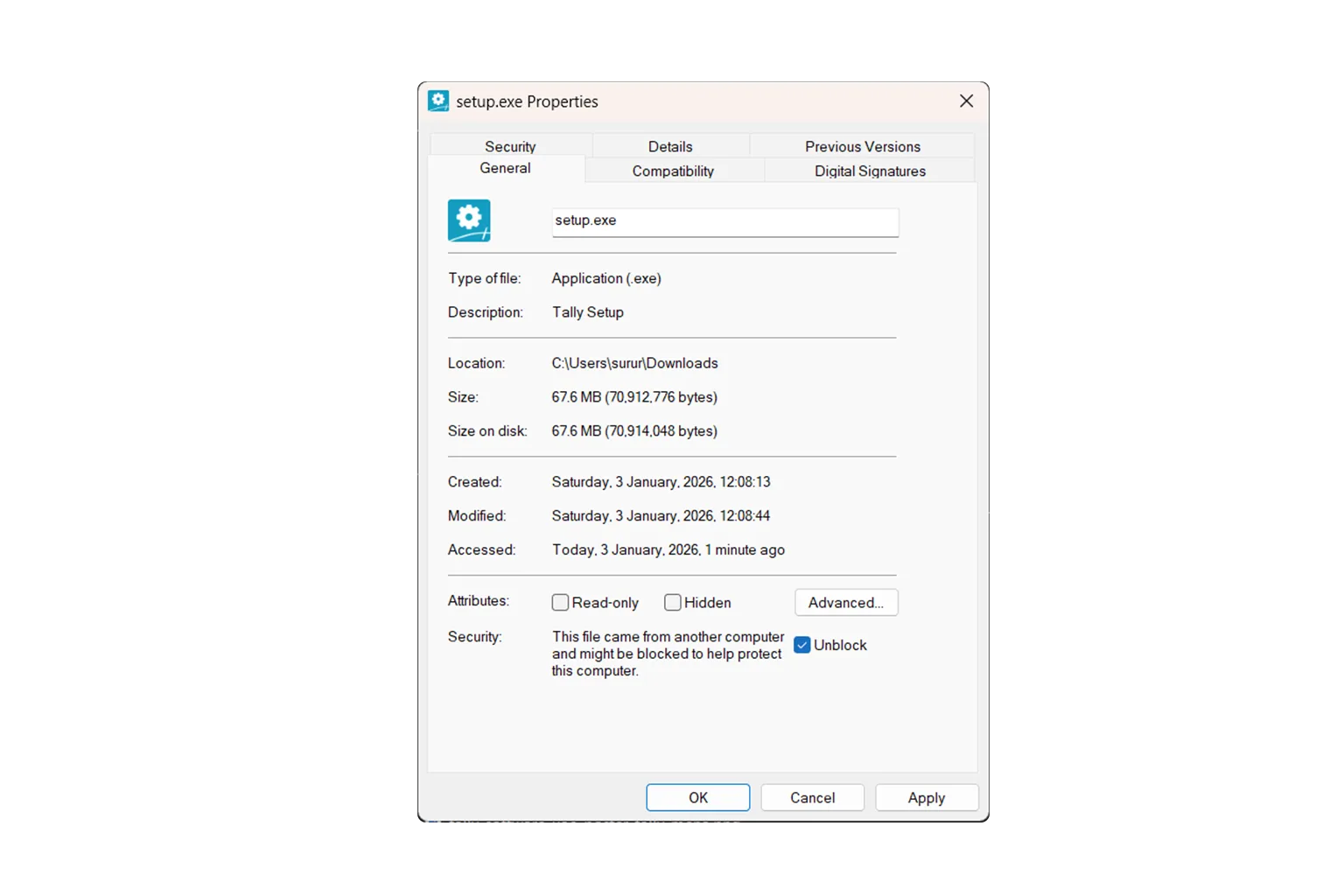
If the installer does not open after download, or closes the moment it starts, Windows may have blocked the file. Right click the installer, open Properties, and check for an unblock option. Running the file as administrator resolves it in most cases.
While the installation runs
Slow or stuck installation progress
Slow installation is usually limited system resources or background processes. In office environments, security scans slow file extraction considerably. Close unnecessary applications, confirm sufficient disk space, and stop antivirus software from scanning every installation file.
The TallyPrime installation guide covers a clean install from download to first company creation if you would rather start over deliberately than repair in place.
After installation: activation and licence
After installation, Tally Prime must connect to the activation server. Activation failure is commonly mistaken for an installation error, so separate the two before changing anything else. The TallyPrime activation guide covers the licence workflow end to end.
- Confirm the software opens. Launch Tally Prime and check the licence screen appears rather than an error dialog.
- Check connectivity to the activation server. Firewalls, proxy servers, VPN connections and incorrect system time settings can all block it. Testing activation on a different internet source tells you quickly whether the network is the cause.
- Enter licence details exactly. Extra spaces pasted along with the serial number trigger licence errors that look like installation failures.
- Deactivate unused machines. A licence still active on another system produces a duplicate licence warning on the new one.
Educational Mode after activation
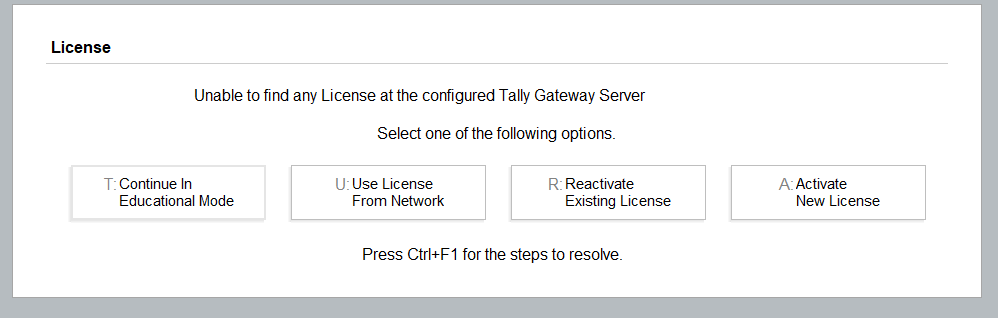
If Tally Prime opens in Educational Mode even after licence entry, the licence file may be missing or corrupted. Use the Reactivate Licence option from the welcome screen and keep a stable internet connection during reactivation.
Licence errors and duplicate licence warnings
Licence errors usually mean the licence is active on multiple machines or that details were entered incorrectly. Confirm there are no extra spaces when copying licence details, and deactivate the licence on unused systems before reactivating it on the correct device.
After activation: network, data and Windows settings
Network and LAN setup for multi user environments
Multi user installations depend on correct network configuration. Client systems must reach the server without firewall or permission restrictions. Both server and client need compatible Tally Prime versions, and shared folders must allow read and write access. If you are still deciding on licensing, the multi user licence pricing page explains the options.
Missing company data after installation
When Tally Prime installs correctly but company data does not appear, the selected data path is usually wrong. Use the Select Company option to browse to the correct folder, then confirm the user has permission to access that location.
Windows compatibility and language settings
Tally Prime supports Windows 10 and Windows 11. Problems appear when system language or regional settings conflict, so keep the Windows interface language in English and avoid mixed language user profiles during setup.
Deeper system restrictions
If installation repeatedly fails after all of the above, deeper restrictions are in place. Corporate endpoint protection or centralised IT policies can prevent installation outright, and that needs coordination with your IT team rather than further troubleshooting.
When a Tally Prime installation error needs a specialist
Some environments cannot be fixed remotely without knowing the exact policy blocking the installer. Our team handles this daily across Dubai, Sharjah, Abu Dhabi and Deira. If the machine is locked down beyond your control, Tally on cloud removes the local installation problem entirely, and an AMC contract covers setup and ongoing fixes on your own hardware.
Related Tally guides
This troubleshooting guide complements the official Tally Prime download process by explaining what to check when installation or activation does not behave as expected. Reviewing the steps above resolves most cases without reinstalling or changing licences.
Most installation faults come back to an older build or a licence that was never activated. If the edition itself is in question, see TallyPrime software in the UAE.
Need a hand with TallyPrime?
Tally Mena is an authorised TallyPrime partner in the UAE. Licences, cloud setup, VAT configuration and training, all handled by our Dubai team.
Talk to an expert