These are the screens you meet, in the order you meet them. If you are activating a fresh installation, start at step one and work down. Most activation failures are a missing detail, not a software fault.
Step 1: Open TallyPrime and choose the activation option
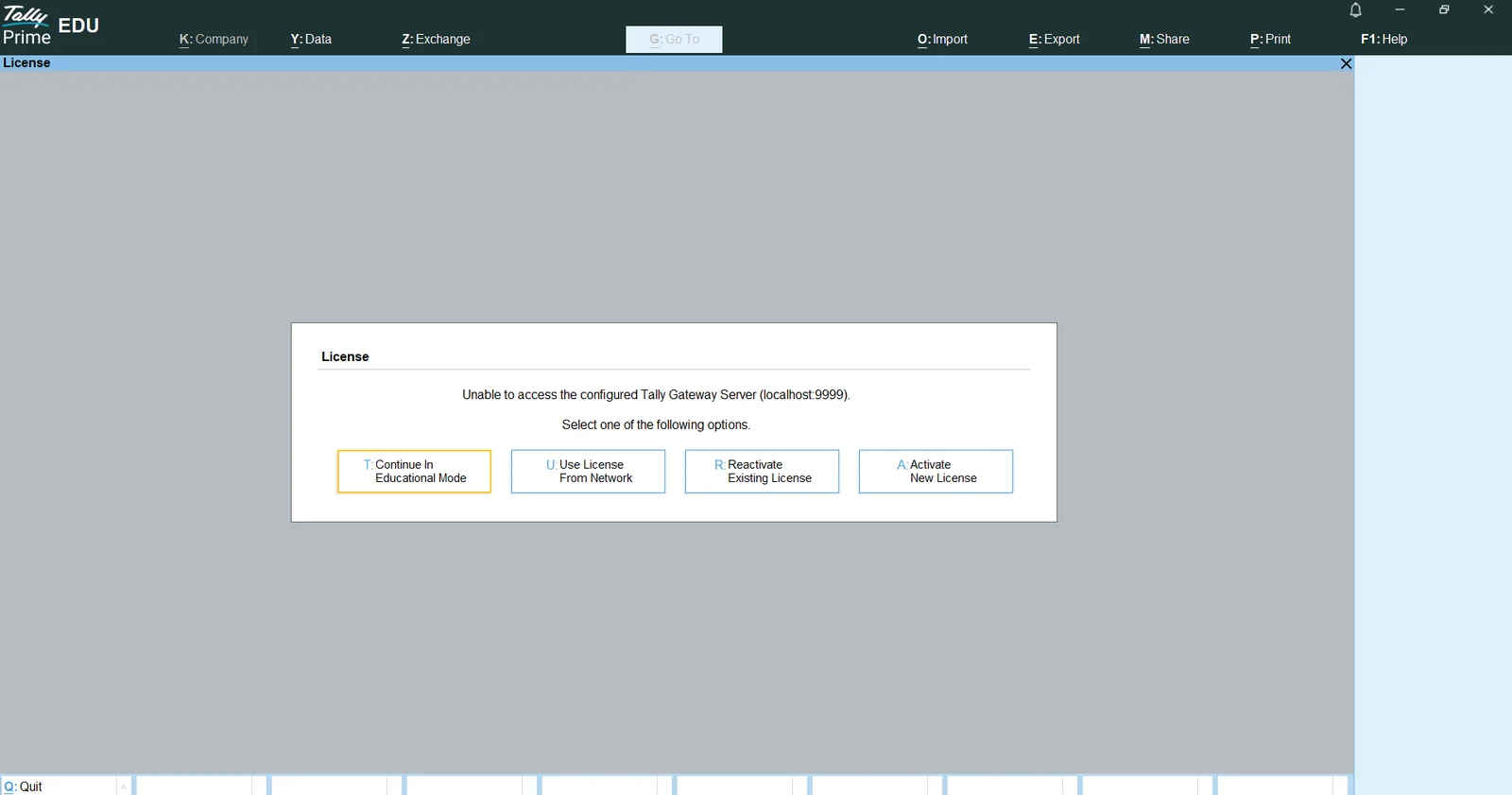
When you launch TallyPrime for the first time, the activation screen appears. It offers four choices.
If you are a new user, choose Activate New Licence and continue.
Step 2: Grant administrator permission
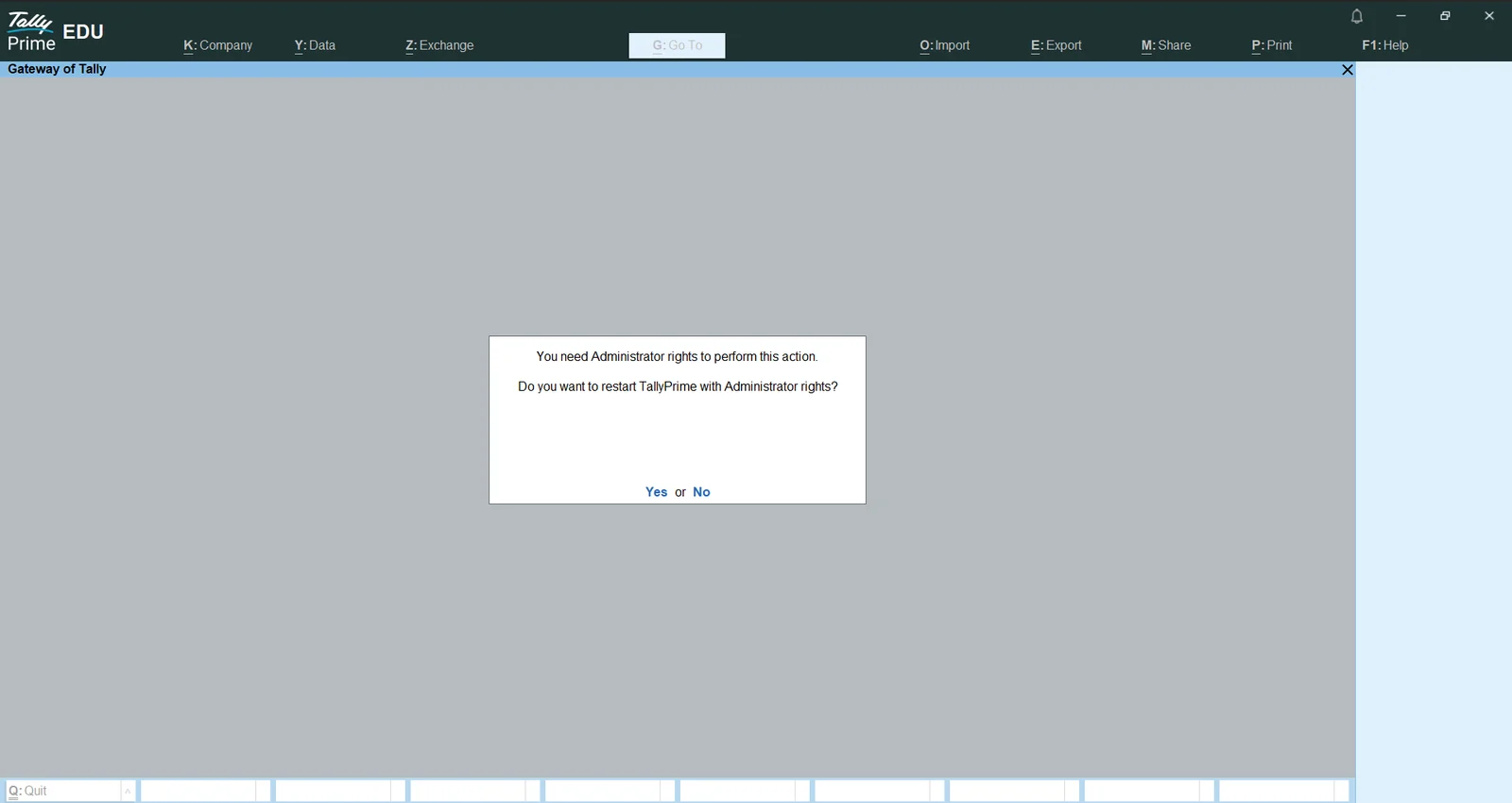
After you choose to activate, TallyPrime needs administrator rights on the machine before it can verify the licence.
Without those rights TallyPrime cannot write the licence to the machine, so activation cannot finish.
Step 3: Enter your licence key
If TallyPrime was opened with Run as administrator, it does not restart and you land on the licence screen. If it was not, it restarts once and then opens with the permission it needs.
On the activation screen you enter three things.
You may need to type the email ID a second time to confirm. Press Enter and licence verification starts.

Step 4: Unlock the licence
If the details are correct, the Unlock Licence screen appears. Enter the unlock key sent to the email address you registered, then press Enter.
The key goes to that inbox within a minute or two. If it has not arrived, check the spam folder before you request another one.

Step 5: Activation successful
When every step is complete, TallyPrime shows the activation success message and the licence is active on that machine. Nothing else is needed.
If activation fails, the cause is usually one of the four details listed further down. Our team can also look at it with you, remote or onsite: Tally support in Dubai.

What to keep ready before you activate
Most activation problems are missing details, not software faults. Have these four things ready and the steps above take a few minutes.
Which release you should activate
TallyPrime 7.2 is the current release. Activate 7.2 unless you need to match a version that another office already runs. Each release since 6.2 added work that a UAE finance team used to do by hand.
| Release | What it added | What it saves you |
|---|---|---|
| 6.2 | VAT 201 upload and submit from TallyPrime | The quarterly return is no longer retyped into EmaraTax |
| 7.1 | UAE e-invoicing onboarding, VAT 201 e-return download, reconciliation report and Return Transaction Book | The whole return cycle runs inside TallyPrime |
| 7.2 | e-invoice exchange, batch sending, four status categories and advance receipts with VAT detail | You exchange e-invoices without a second portal |
The installer is on the Tally Prime download page, which always names the current release.
If you exchange e-invoices, activation is only half the job
UAE e-invoicing onboarding started with TallyPrime 7.1. A licence activated on an older build cannot register the company for e-invoicing.
Businesses with revenue above AED 50 million had to appoint an Accredited Service Provider by 30 October 2026. They go live on 1 January 2027. Businesses below that threshold appoint by 31 March 2027 and go live on 1 July 2027.
The setup steps are in UAE e-invoicing in TallyPrime. If you have not bought a licence yet, the editions and prices are on buy a Tally licence in the UAE.
Talk to us
Tally Mena, M Floor, Suite M1 B, Al Riggah Building, 27 1B St, Al Khabaisi, Deira, Dubai, United Arab Emirates.
Call +971 55 325 7886, message us on WhatsApp or email hello@tallymena.ae.
We activate licences remotely across the UAE, and onsite in Dubai. Mon-Thu 9:00-18:00, Fri 9:00-12:30 and 14:00-18:00, Sat 9:00-18:00, Sunday closed.
Questions we get
Where do I find the serial number and activation key?
Why does activation fail?
Which version should I activate?
Can you activate it for me?
Need this set up in TallyPrime?
If the licence is bought but not activated, we can finish it in one session. If the licence is active but the setup behind it is not, we can do that too.
Get your licence activated today
Send us the serial number and we will confirm the release you should be running before you activate.