
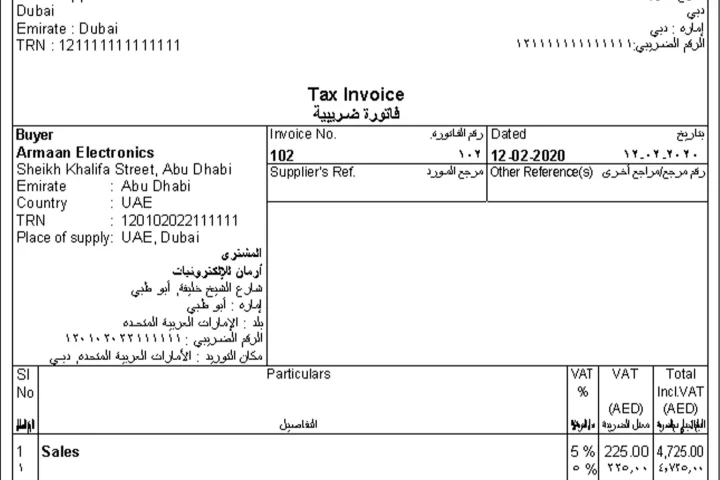
Learn how UAE businesses can create Arabic and English bilingual invoices in Tally Prime for clearer communication and smoother VAT compliant invoicing.
A common invoicing challenge in the UAE
Many businesses in the UAE deal with a mixed audience every day.One invoice, two languages
English
العربية
While English invoices are widely used, Arabic visibility on invoices is important in the UAE, especially for:
This is why many UAE businesses choose bilingual invoices, where Arabic and English appear on the same invoice.
TallyPrime supports this requirement, but many users do not know how to set it up correctly.
What is a bilingual invoices in TallyPrime
A bilingual invoice is a single invoice that shows details in both English and Arabic.Usually, it includes:
This helps everyone read the same document without confusion.
In the UAE, bilingual invoices are not mandatory for all businesses, but they are strongly recommended for clarity, professionalism, and future compliance needs.
How UAE businesses actually use bilingual invoices
Let us look at a practical UAE example. A Dubai based trading company: Internally, accounts staff work in English. Customers prefer Arabic invoices.By using bilingual invoices in Tally Prime:
No separate Arabic invoice. No manual translation. No confusion.
Benefits of bilingual invoices for UAE businesses
Using bilingual invoices gives practical advantages, not just compliance.How Tally Prime supports bilingual invoicing
Tally Prime allows you to:Once set up, daily invoicing becomes very simple.
Step by step guide to create bilingual invoices in Tally Prime for UAE
Step 1: Enable local language support
Go to: Gateway of Tally Press F11 FeaturesEnable:
Save the settings.
Step 2: Enter company details in Arabic
Open: Company alteration screenEnter:
Save using Ctrl + A. This ensures your invoice header appears correctly in bilingual format.
Step 3: Add Arabic names for customers and suppliers
Go to: Gateway of Tally → Alter → LedgerOpen a customer ledger.
Save the ledger. Repeat this for customers, suppliers, and cash or bank ledgers if needed.
Step 4: Add Arabic names for stock items or services
Go to: Gateway of Tally → Alter → Stock ItemSave the item. This step is important for trading and retail businesses.
Step 5: Configure invoice printing settings
Create or open a sales invoice.Press: Ctrl + P to print Then press C to configure
Save the configuration.
Step 6: Preview and print the invoice
Press I to preview or P to print. Choose PDF printer and save the invoice.Your invoice will now show Arabic and English together.
UAE VAT and bilingual invoices
Bilingual invoices do not change VAT calculation.They help during VAT audits, customer verification, and document checks. Authorities can clearly read invoice details without translation.
Common mistakes UAE users make
Bilingual invoices affect presentation, not calculation.
When you should use bilingual invoices, and when you may not
You should use bilingual invoices if: You may not need them if:Even then, preparing for bilingual invoicing is future safe.
Final advice for UAE businesses
Bilingual invoices are not about complexity. They are about clarity and professionalism.
Once the setup is done in Tally Prime, daily invoicing takes the same time as before.
If you need help setting up bilingual invoices correctly or e-Invoice for your UAE business, the Tally Mena support team can assist and ensure everything is aligned with your invoicing and VAT requirements.
A bilingual layout that has to match a customer's own template is customisation work, not a setting you can switch on.
Need a hand with TallyPrime?
Tally Mena is an authorised TallyPrime partner in the UAE. Licences, cloud setup, VAT configuration and training, all handled by our Dubai team.
Talk to an expert