Troubleshooting TallyPrime Installation Issues in UAE
TallyPrime installation issues in UAE offices are usually caused by system permissions, network restrictions, or license activation conditions rather than software defects. Many users download the installer successfully but face problems during setup, first launch, or activation. This guide explains how to identify and resolve these issues step by step in a structured and practical way.

What happens during Tally Prime installation
During installation, TallyPrime copies program files to the system, checks Windows permissions, and prepares the environment for license activation and data access. If security software or user restrictions interrupt any of these steps, the installation may appear complete while the software does not function correctly.
Check administrator permissions before installing
Limited user permissions are a common cause of Tally Prime installation issues in UAE offices. Many systems are controlled by IT policies that restrict software installation.
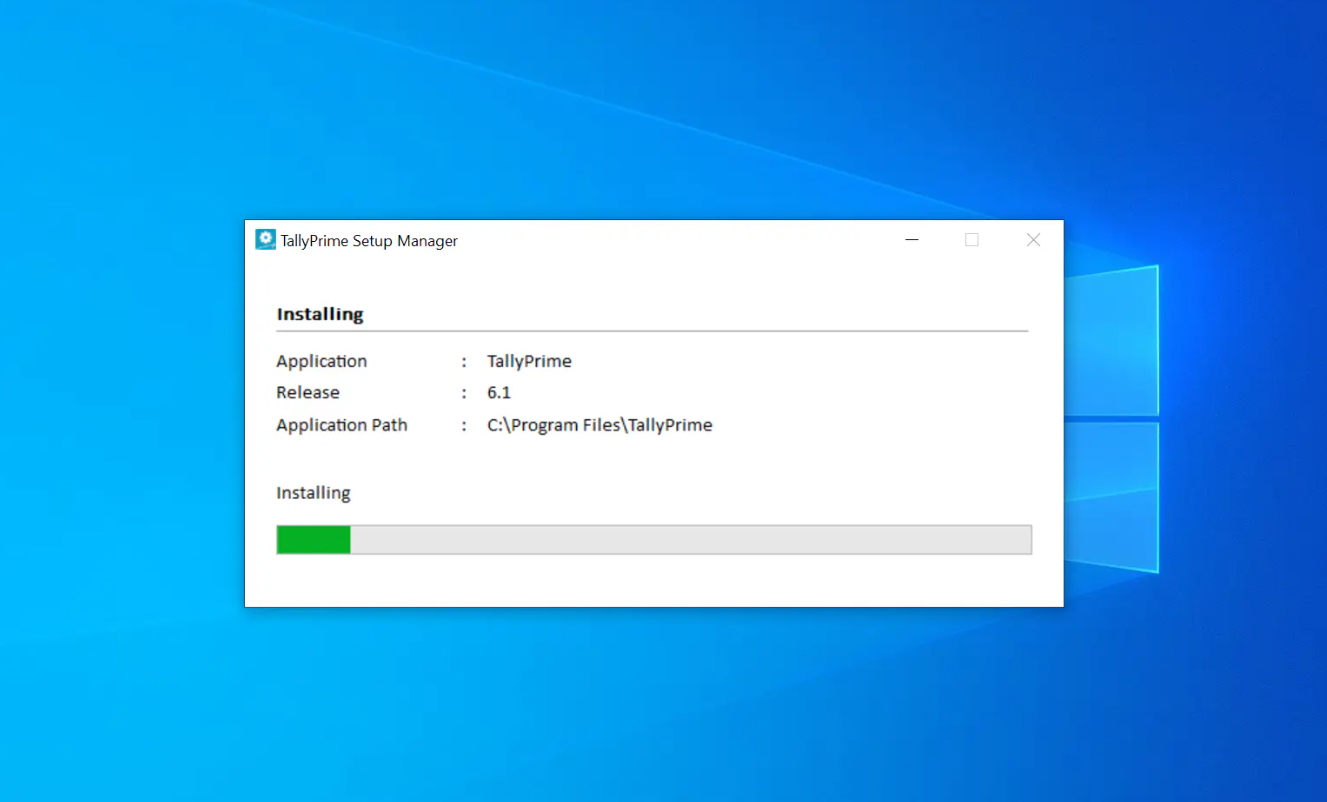
Always ensure the installer is run using administrator rights and that the user account has permission to install applications. Sudden installer closure usually indicates a permission related block.
Review antivirus and Windows security settings
Antivirus tools and Windows Defender may block executable files during installation. This can cause the installer to freeze or fail silently.
Temporarily pausing real time scanning and adding the Tally Prime folder to exclusions after installation can help the process complete correctly.
Fix installer not opening or closing automatically
If the installer does not open after download or closes immediately, Windows may have blocked the file.
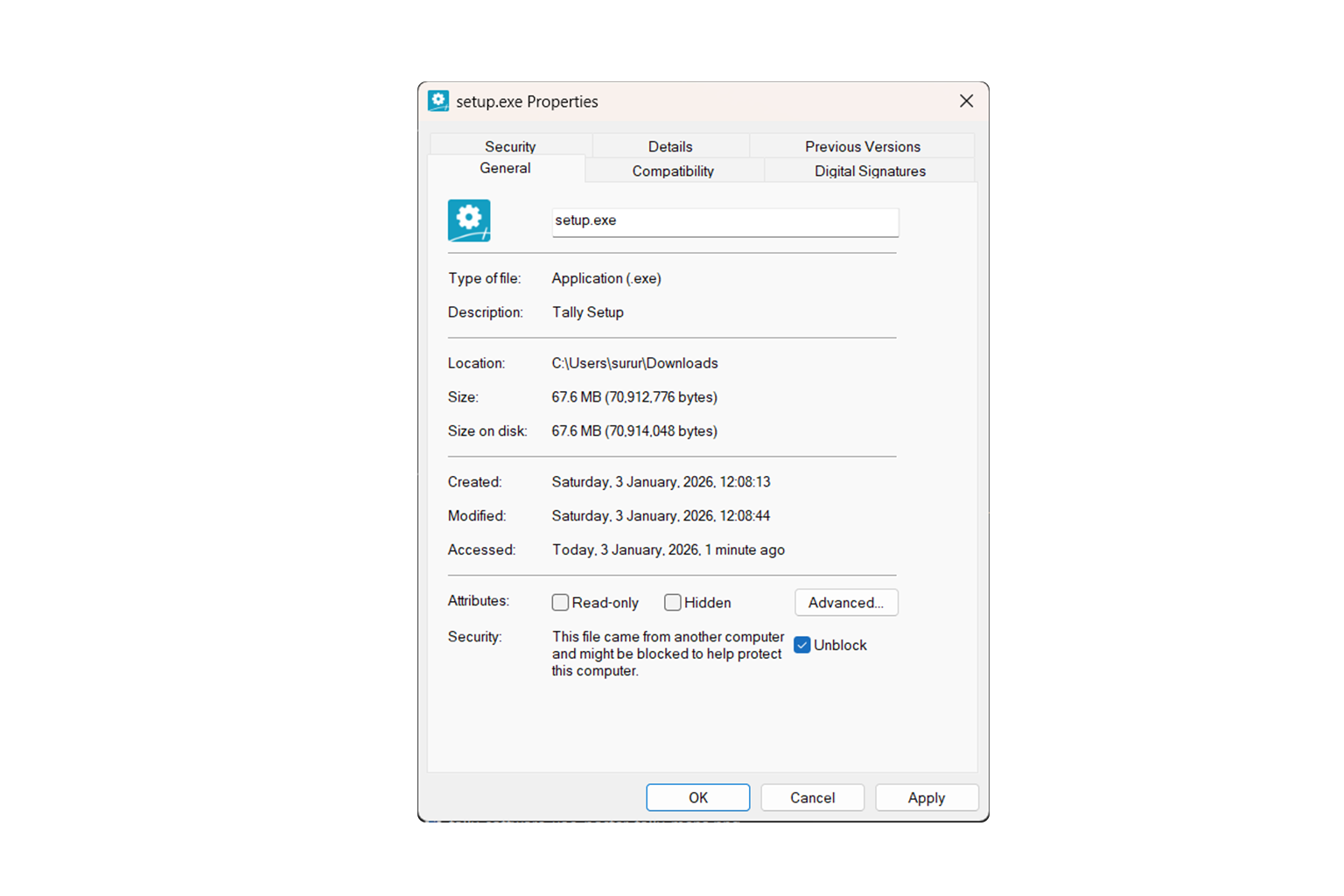
Right click the installer, open Properties, and check for an unblock option. Running the file as administrator often resolves this issue.
Resolve slow or stuck installation progress
Slow installation is often caused by limited system resources or background processes. In office environments, security scans may slow file extraction.
Close unnecessary applications, confirm sufficient disk space, and ensure antivirus software is not scanning every installation file.
Follow our step by step TallyPrime installation guide for error free installation
Understand license activation after installation
After installation, Tally Prime must connect to the activation server. Activation failure is commonly mistaken for an installation error.
Firewalls, proxy servers, VPN connections, or incorrect system time settings may block this connection. Testing activation using a different internet source helps identify network related problems.
Fix Educational Mode after activation
If Tally Prime opens in Educational Mode even after license entry, the license file may be missing or corrupted.
Use the Reactivate License option from the welcome screen and ensure a stable internet connection during reactivation.
Resolve license errors and duplicate license warnings
License errors often occur when a license is active on multiple machines or when details are entered incorrectly.
Confirm there are no extra spaces when copying license details and deactivate the license on unused systems before reactivating it on the correct device.
Check network and LAN setup for multi user environments
Multi user installations depend on proper network configuration. Client systems must connect to the server without firewall or permission restrictions.
Ensure both server and client use compatible Tally Prime versions and that shared folders allow read and write access.
Fix missing company data after installation
When Tally Prime installs correctly but company data does not appear, the selected data path may be incorrect.
Use the Select Company option to browse to the correct folder and confirm the user has permission to access that location.
Check Windows compatibility and language settings
Tally Prime supports Windows 10 and Windows 11. Issues may occur if system language or regional settings conflict.
For stable operation, keep the Windows interface language in English and avoid mixed language user profiles during setup.
Identify deeper system restrictions
If installation repeatedly fails despite following all steps, deeper system restrictions may be in place.
Corporate endpoint protection or centralized IT policies may prevent installation. In such cases, coordination with the IT team is required.
How this guide supports the download process
This troubleshooting guide complements the official Tally Prime download process by explaining what to check when installation or activation does not work as expected. Reviewing these steps often resolves issues without reinstalling or changing licenses.